• Link to X
  • Link to Flickr
  • Link to Youtube
  • Link to Mail
  • Link to Rss this site
Welcome to AvaCon!
AvaCon, Inc.
  • Home
  • Donate
  • News
  • AvaCon Grid
    • Getting Started
    • Create an Account
    • Free Virtual Land for Social Good Organizations
    • Grid FAQs
    • Grid Map
    • Code of Conduct
    • Admin Portal
  • Resources
    • Introduction to Building in Open Simulator
    • OSCC Breakout Region
    • Futuristic Presentation Center
    • Primland
  • Programs & Events
    • Nonprofit Commons
    • Avatar MeetUps
    • Free Virtual Land for Social Good Organizations
    • OpenSimulator Community Conference
    • Federal Consortium of Virtual Worlds Workshop
    • Metaverse Cultural Series
    • Second Life Community Convention
  • Contact
  • Company
    • About AvaCon
    • Documents
    • Open Positions
    • Press & Media Coverage
  • Click to open the search input field Click to open the search input field Search
  • Menu Menu

03. Resizing a Prim

You are here: Home1 / Introduction to Building in Open Simulator2 / 03. Resizing a Prim

Resizing a Prim

Now that you’ve seen all the different basic shapes you can rez, it’s time to learn to change their size.

Instruction

You can resize a prim to be larger or smaller. You can also change a prim by changing just one dimension of it. For example, you can begin with a cube, and s-t-r-e-t-c-h it into a rectangle. Just like moving and rotating a prim, you can eyeball a prim’s shape and size, or resize it mathematically. This lesson will teach you how to do both.

Practice

Rez a cube prim on the ground and hold down the CTRL+SHIFT buttons. You should see the arrows on your cube disappear and small colored boxes will appear on each face of the prim, and small white boxes will appear at the vertices of your prim.

Step 1: Resize a Prim Along One Dimension

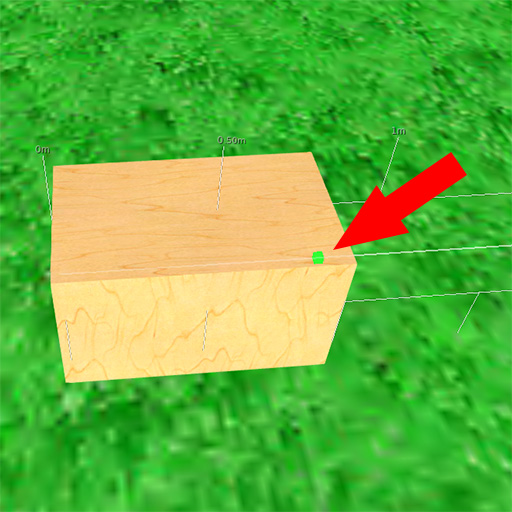
To stretch the prim along a particular dimension, still holding down the CTRL+SHIFT keys, left click on one of the colored boxes and click and drag to stretch the prim.
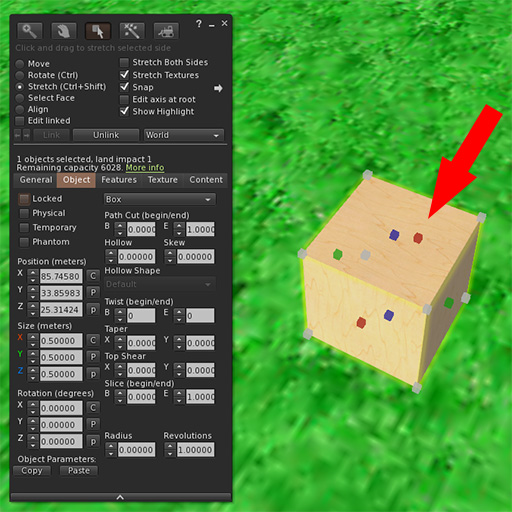
Firestorm build menu with arrow pointing to stretch handles.
Firestorm cube after stretching along green axis.

Step 2: Resize a Prim Proportionally

To resize the prim in proportion, click and drag on one o f the white boxes at one of the vertices (corners) of your prim.
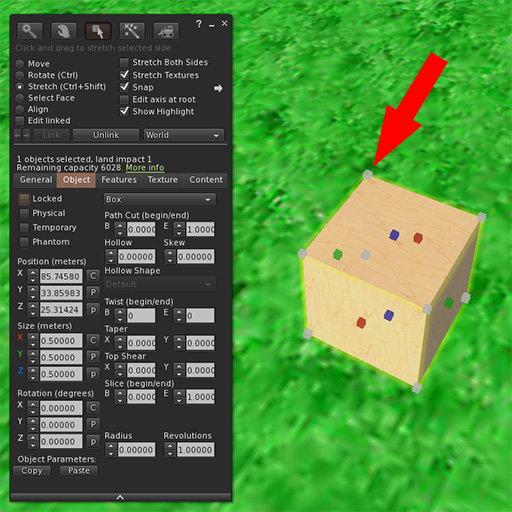
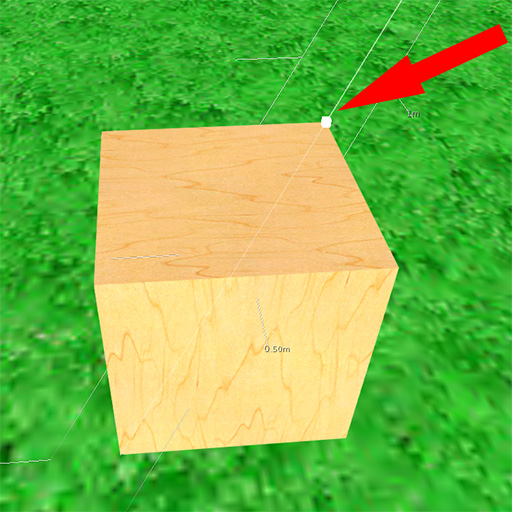
Firestorm build menu with arrow pointing to corner handle of cube.
Closeup of cube with arrow pointing to corner handle.

Try this now: Practice dragging the different colored squares to alter both the shape and size of your cube. Try making a large flat rectangle, tall thin tower and everything in between.

STEP 3: USING NUMBERS TO RESIZE A PRIM

Just as with positioning and rotating a prim, you can use exact numbers to size a prim. A prim is always rezzed a particular size. A cube, for example, always begins as half a meter (0.500) on each side.

Practice entering different values for each of the axes to see how they affect the size and shape of the cube.
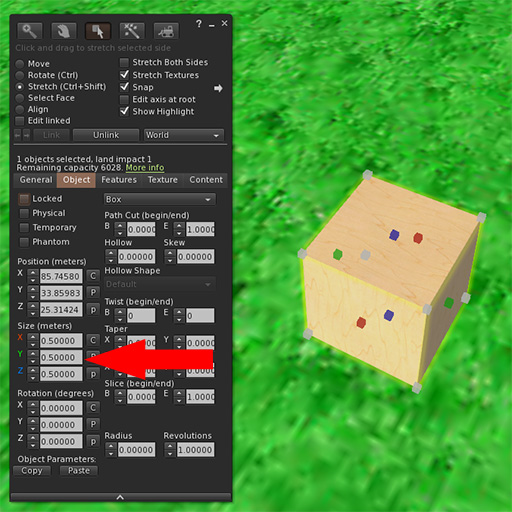
Firestorm build menu with arrow pointing to numberical resize.

Step 4: Practice stretching and resizing other shapes

Other shapes stretch and size in slightly different ways.

Try this now: Take a few minutes to see how you can alter the other shapes you have to work with.
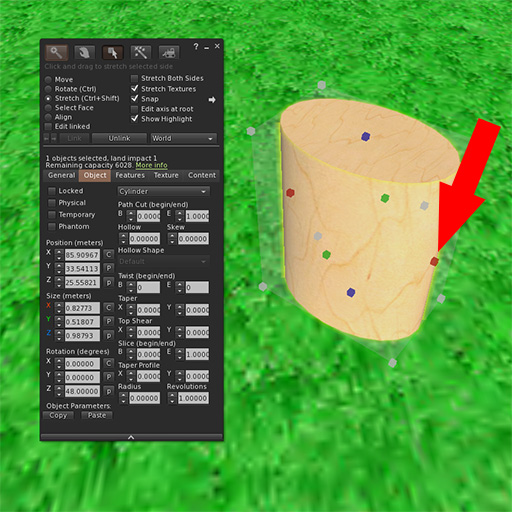
Firestorm build menu with arrow pointing to tube stretch handle.
Firestorm build menu with multiple spheres for resizing.

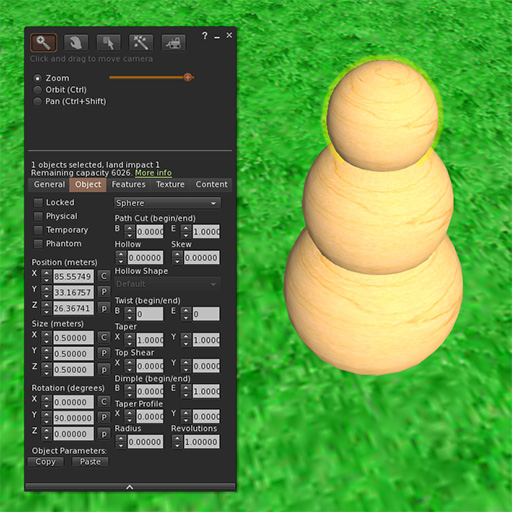
Take some time to create something that takes several prims. You can move prims so they are partially inside each other to create really interesting shapes! When you are done experimenting, make sure to take a few minutes to clean up!

If you are using the PRIMLAND Tutorial game, stop here and continue on the path!

Introduction to Building

  • Introduction to Building in Open Simulator
    • 0.1. What is OpenSimulator
    • 0.2 Getting Started
    • 01. Basic Building
    • 02. Moving and Rotating a Prim
    • 03. Resizing a Prim
    • 04. Linking a Prim
    • 05. Playing with Shapes
    • 06. Using Path Cut to Slice Prims
    • 07. Hollow and Hollow Shape
    • 08. Taper, Top, Shear and Dimple
    • 09. Twisting Prims
    • 10. Additional Features
    • 11. Flexi Prims
    • 12. Adding Light
    • 13. About Textures
    • 14. Introduction to Texturing
    • 15. Color and Transparency
    • 16. Uploading and Applying A Texture
      • 16.1 Download Textures
    • 17. Texture Repeats
    • 18. Texture Offsets
    • 19. Fixing Flicker
    • 20. Advanced Texturing Techniques
    • 21. Light and Shadow
    • 22. Using Textures Wisely and Well
    • 23. Scripting

Interesting links

Here are some interesting links for you! Enjoy your stay :)

News

  • OpenSimulator Community Conference – Call for Proposals for OSCC23 – important dates
  • AvaCon to stream Virtual Ability Symposium on April 26th.
  • Join us at VWBPE!
  • OpenSimulator Community Conference 18 – Call for Proposals
  • 5th Annual OpenSimulator Community Conference 2017

Categories

  • Events
  • General News
  • Metaverse Cultural Series
  • Open Positions
  • OpenSimulator Community Conference
  • Top News
  • Uncategorized
  • Updates

Site Admin

  • Log in
  • Entries feed
  • Comments feed
  • WordPress.org
© Copyright - AvaCon, Inc. - Enfold WordPress Theme by Kriesi
  • Link to X
  • Link to Flickr
  • Link to Youtube
  • Link to Mail
  • Link to Rss this site
Scroll to top Scroll to top Scroll to top